Showing posts with label various. Show all posts

How to Remove Metadata in Pictures

image properties with metadata creation software adobe photoshop cs3

When you edit your images Adobe Photoshop (and other programs) adds a line in picture properties revealing that it was modified, for example Creation Software Adobe Photoshop CS3 Windows is added in image properties. The same goes with digital cameras, they also add lots of metadata in image properties (like Camera model, Shutter speed, Date picture taken and so on). More experienced users can quickly right click on the image and say that it was altered with some software. You can't remove this metadata info on the image with plain windows but there are few tricks that might help.

1. Remove picture metadata with Paint.

This tip is faster and suitable for small images, those which fit on the screen. Open image whose metadata you want to delete and just make a screenshot of it. Then open paint and paste it. Save and see that all metadata is gone. Don't be afraid of loosing image's quality because in theory screenshot making is lossless operation Read my previous post about "How to Make Screenshots"

2. Delete image metadata with JHEAD.

Previous tip isn't very practical when you need to remove metadata from many pictures. And here JHEAD comes into play. This program doesn't have graphic user interface but I'll show you how to use it.

a) At first create folder named pictures in your C disk folder pictures

b) Then copy all photos whose metadata you want to remove to this folder (C:\pictures) c) Download a small program JHEAD and save it to that folder

d) Press Start -> Run or Windows key + R to open Run menu, type cmd.exe and press OK

run menu

e) A cmd command line window open. Now be careful and type exactly what is written:
type cd\ and press Enter
type cd images and press Enter
type jhead -purejpg * and press Enter
now you should see a list of images whose metadata was removed. Your cmd window will look similar to this

cmd window

Check your images' properties and see that all metadata is removed. Now you will be sure that noone will see any additional information except image itself.

Quickly Share Learning Materials With Your Fellow Academic Groupmates

If your lecturer is using Powerpoint to make presentation and agrees to share material you lecturehave 2 situations. One is to save presentation in your USB key or trust another student which promises to put the files in Group Conference or send via e-mail. You never know what will happen so here's another solution how to share presentations with all classroom and don't worry if someone won't get it.
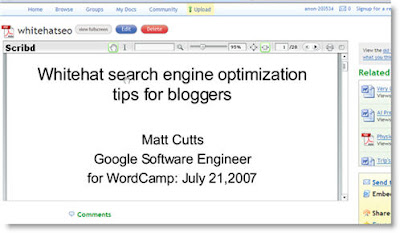
1. Put the presentation in one of many file sharing services like Scribd. You can do it even without registering.

2. Make the link shorter by using Tinyurl service. You can make very long urls into short and easy to remember url which are about 25 characters long. For example this url http://tinyurl.com/23qs8e made from 86 character long url. It's easy to write down for all class because if you can remember tinyurl.com you only have to memorize last 6 symbols.

Off course this trick to work there must be an internet connection in your classroom. And sometimes lecturer doesn't want his presentation to be available in public domain. In this case instead Scribd use other file storing places like JustupIT. Compress and pasword protect files if necessary.

The whole process took me about 2min and 15sec to accomplish. It's not longer than to install your usb key and copy files to it instead.

scribd

Kaspersky IS6 Blocks Javascript

kaspesky internet security logo

Recently I've noticed on my old PC (with IE6) that Javascript doesn't work and wondered why. At first I checked IE6 and Firefox settings for enabling Javascript but everything seemed fine. Then I turned off my Kaspersky Internet Security 6 and everything worked correctly.

But this is no solution to turn off Kaspersky and be left without protection in order to use javascript.

At first make sure that Javascript is enabled in Internet Explorer

  • Select 'Tools' from the top menu
  • Choose 'Internet Options'
  • Click on the 'Security' tab
  • Click on 'Custom Level'
  • Scroll down until you see section labled 'Scripting'
  • Under 'Active Scripting', select 'Enable' and click OK

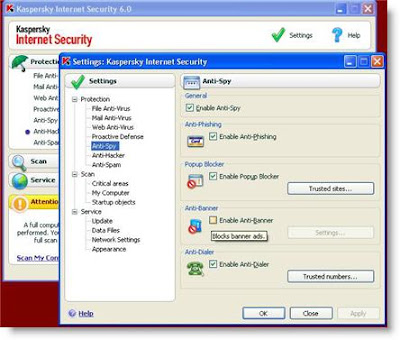
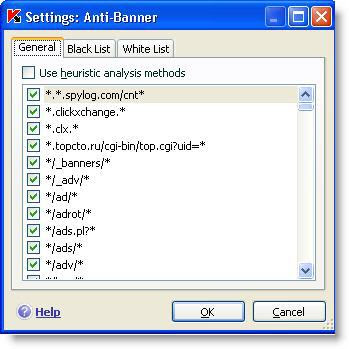
If this is done and Javascript still doesn't work it probably means that Kaspersky settings are blocking it. Go to Kaspersky Settings ->Protection ->Anti-Spy options and uncheck Enable Anti-Banner box. Refresh the page and see if javascript works.

kaspersky

kaspersky