Showing posts with label firefox. Show all posts

Optimize your Blogger Blog for SEO

SEO optimization for blogs can bring you tons of new visitors without using PPC compaigns or any other costly way of attracting new readers. You get your free and highly interested in topic visitors from Google.

Standard Blogger blog hasn't the feature to input your own meta keywords and description into a blog. Many bloggers forget that and don't pay any attention, but creating your Blogger blog more SEO and search friendly will bring great benefits inluding your Adsense income.

To include those 2 important meta tags in your blog:

  • Go to Layout mode and select Edit html;
  • Find closing </head> tag (Ctrl+F) and type those lines:

<meta name="Keywords" content="keyword1, keyword2" />
<meta name="Description" content="description for your blog " />

  • Adjust description and keywords text for your own needs.
  • Save Template and Reload your blogger blog.

Tip. You can check your metatags for every page on the internet with Firefox. Install famous Web Developer toolbar addon and press Information->View Meta Tag information.

No Roll Over Alt Text with Firefox?

you see alt text

If you noticed that when you place an image in your blog and roll over it in Internet Explorer you get alternate text displayed for several seconds, but when you try to do it in Firefox the text doesn't show up. This is because Firefox doesn't display Alt text like IE does.

This is quite strange but the fix is really easy. If you add a title attribute to an image then even Firefox will display it as an alternate text.

Blogger doesn't provide you with instant title attribute adding feature but it's really not difficult. Just insert image as you allways do by clicking on the Add Image button and then go to Edit Html mode. Locate where is the image tag and add the following line after src attribute:

title="some image title to display on roll over".

Your whole image tag would look like this:

<img id="..." style="FLOAT: right; MARGIN: 0px 0px 10px 10px" alt="you see alt text" title="you see title text" src="..." border="0" />

When you have only Alt attribute in the img tag then IE will display it but Firefox won't, when you have both Alt and Title attributes, then both browsers will display title attribute. Using title attributes with images can improve your blog or site in a way that it can be indexed better by search engines and Firefox users will see Alt text as well.

Bellow is two images working as examples:

This image has only Alt attribute (Alt="This is Alt text") , if you read this blog with Firefox you probably don't see when roll over

You see alt attribute text

This image has both Alt and Title attributes. You should see roll over text on both IE and Firefox

You see alt attribute text

Related: How to display Html code in Blogger

How to Recover Firefox Profile

Firefox profile can be lost or damaged even after unexpected computer restart so it's better to back it up as soon as possible. In this article I'll write about 2 situations. At first How to back up and restore Firefox profile and second How to recover Firefox profile.

1. Back up FF profile with MozBackup

MozBackup is a handy program which does all the back up job for you. It's free and easy to use. Backed profiles you can store either on your computer or external devices such as usb keys. You can download MozBackup here.

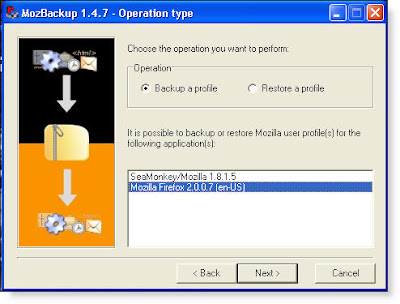
Launch the application and select backup a profile from options. You can choose which profile to back up, and where to save a backup file.

mozilla backup

backup select user

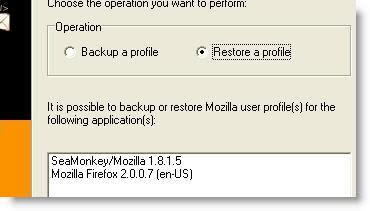
To restore the profile on your own or another computer simply launch the MozBackup application and then select the profile to restore to.

restore

2. Restore Firefox Profile

To restore damaged Firefox profile you have to manually edit some files. At first locate your Firefox profile by going to C:\Documents and Settings\Your Username\Application Data\Mozilla\Firefox\Profiles\xxxxxxxx.default\, where xxxxxxxx is a random string of 8 characters. Notice: Application Data folder is hidden by default and you have to change folder view setting to see hidden files.

In this folder all your settings are saved. Bookmarkbackups folder has saved your bookmarks from where you can restore it. If you haven't saved your profile earlier you have to do all dirt work with your hands. Everything which can be recovered for your profile lies in this folder.

To prevent loosing your Firefox profile again create new one and backup it with MozBackup as explained above.

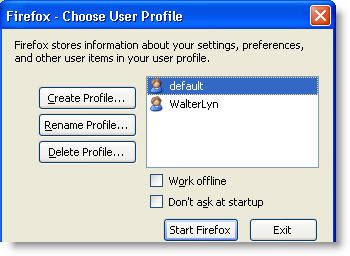
One last trick how to create new profiles for Mozilla Firefox. Go to Start Run and type: firefox.exe -ProfileManager If you have Firefox closed a Profile Manager opens.

profile manager

Save Flash Ads From Internet Web Pages to Your Computer

This is another article from many of how to save flash content to your computer. Swf or flv files are hard to download because they have no right click save as function. They're embedded objects.

In this post I use a complex technique of saving flash ads and will refer to my previous posts for specific techniques.

So you found a nice flash based ad on a site and want to download it for whatever purpose (analyze content or just store as a good (bad, funny) example). First you have to locate the path to flash file. In other words address from where website is getting it. To accomplish this, you must look at the source code. You could do this by right clicking and selecting view source option but I recommend a better way. Use Firebug add-on for Firefox. (If you haven't got Firebug add-on read my article about it first) This method for viewing source code is better because it brings you at the right place of the entire html code which can be terribly long and locating right flash file link would be really hard.

1. To start locating flash file position open the page with flash ad and press Firebug icon in order to open Firebug window. Firebug launch

2. In the firebug window press Inspect (bellow File). Firebug window hides and now you have to locate the element on the page which yuo want to inspect. When you mouse over objects they are highlighted. Right click on the flash ad and Firebug window appears again with code highlighted in the right place. flash ad source code

3. Right click on the highlighted line of code and select edit html. You're taken to a new window with that particular code line

<embed width="728" height="90" pluginspage="http://www.macromedia.com/shockwave/download/index.cgi?P1_Prod_Version=ShockwaveFlash" type="application/x-shockwave-flash" flashvars="clickTag=http%3A//a.tribalfusion.com/h.click/aDmyfbUArTPT3XSVvoQWUO1HfxWPrM4sM3Xb3IVm2n2AB8R6ZbC3dUt0HQAntTy56ZbQ3sv7UcQ9WsbeR63oWtv3TFM45bEuWabqTEJcQqQLRcQJRrAoRWQ7VcbT2FmomHaM0aPw4tMZbSFftf8WptZa/http%3A//www.puzzlepirates.com/index.xhtml%3Ffrom%3Dfulltango%26tag%3Dno2" bgcolor="#ffffff" quality="high" wmode="transparent" swliveconnect="True" src="http://cdn5.tribalfusion.com/media/common/flash/frame2.swf?tf_flash=http://cdn5.tribalfusion.com/media/890566/728x90_plunder_clickTAG.swf&tf_button=http://cdn5.tribalfusion.com/media/common/flash/button2.swf" name="TFclick2071511101"/>

What you have to do is to locate links to flash content in this code block. One is http://cdn5.tribalfusion.com/media/common/flash/button2.swf and other http://cdn5.tribalfusion.com/media/common/flash/frame2.swf Check the founded links by simply pasting it in your browser's address line and see if the correct ad shows up. But what happenned? Only blank pages opens with these links. Don't worry it's because this particular flash ad loads in a frame and the real file is somewhere else.

4. Let's look again in the Firebug window. Look near the highlighted line for other lines which contain "param value" syntax. In this example I found that few lines above was a line firebug

<param value="http://cdn5.tribalfusion.com/media/common/flash/frame2.swf?tf_flash=http://cdn5.tribalfusion.com/media/890566/728x90_plunder_clickTAG.swf&tf_button=http://cdn5.tribalfusion.com/media/common/flash/button2.swf" name="movie"/>
Notice it has a link to swf file called 728x90_plunder_clickTAG.swf. Check it in your browser and see that flash ad loads in a window which means we found the right link.

flash ad found

5. Ok we've found the flash ad but how to save it to computer? The easiest way to do that is to use Firefox add-on for downloading embedded files. download flash

This article is the most difficult from all my posts about downloading flash files (also Youtube movies). You have to use Firefox and 2 add-ons in order to easily complete the task.

Related: Firefox add-ons.

Firefox Doesn't Show LOCALHOST Files

Strange situation occurred after I've installed some firefox add-ons. I noticed that my localhost folder became inaccessible in Firefox. A blank page with no files or folders appeared. But IE7 showed localhost perfectly.

I skipped through Firefox settings and noticed that in connection section proxy settings were somehow mixed up. In the No Proxy for line a value "*.local" was written. This is incorrect it should be written localhost alone to work fine. So I deleted this line and changed it to localhost. After that everything worked perfect.

So if your Firefox browser suddently stopped showing localhost (127.0.0.1) content and you have proxy set up check firefox settings for proxy exceptions. Tools->Options->Advanced->Network->Settings No Proxy for localhost

firefox proxy settings

Find What COLOR Code is Used in a Webpage

Drop down menu for web developer's toolFound an interesting color design and want to test something similar in your site but can't quess what code it is? Then you probably don't have Web Developer's Toolbar installed.
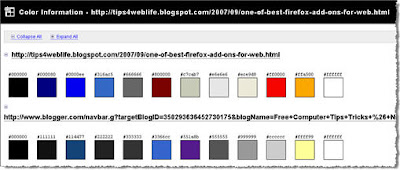
With this firefox add-on it is easy as 2 clicks to view all colors in a separate page.
Open the page where your color of interest is. Press Information menu and then View color information.
A new tab with color examples and their hexadecimal (example #ff0000) codes opens.
Color page

One of the BEST Firefox Add-ons for Web Developer (Firebug)

firebug add-on windowFirebug after Web Developer's Toolbar is a second must have add-on for any web developer. The main purpose of this add-on is to modify web page on-the-fly. You can make small changes to css style or html tags and immediately see results. It's like working with Dreamweaver. The good thing is that you can see and modify not only your webpage but every page on the web. To install this add-on go to Mozilla addons page and press green install now button. When you install Firebug add-on it may not appear on Firefox toolbars panel. You have to manually place Firebug icon on the panel. (See Youtube video at the bottom of my other post how to do that). Suppose you succesfully installed this add-on, now open any webpage and click firebug icon. A new window appears. Here you will see 6 different tabs: Console, HTML, CSS, Script, DOM, Net

In HTML tab you can see the code, on the right are CSS styles and graphical layout. Change the code here and see results.
Similarly explore other tabs and play around with your modifications. By the way turn on Inspect button when in HTML tab. This feature highlights html code in firebug window according to your mouse over the page you're firebugging (exploring)

Firebug add-on and web developer's toolbar makes an unbeatable toolset for any beginner or experienced web developer.
Notice: You can't directly save modified pages with Firebug add-on. You only see how page will look like with changed parameters. Do the same modification with your usual tools (e.g. Dreamweaver) to really change page.

Need To Save Flash Games from Sites Like Miniclip?

So you want to download and play flash games on your computer? I tested this trick on these popular free flash game sites: ugotgames, dailyarcade, addictinggames, miniclip, zoopgames, legitgames, flash-game.net It should work on other flash game sites as well. To download flash games from the internet you need this powerfull firefox add-on which can save any flash object from page. It also can save all embedded objects. After installation you will see this Icon icon in the lower right corner of firefox browser. Let's take an example and save one flash game from miniclip site. Open this page with a Superman Returns Save Metropolis game and press Icon. Select view embedded objects. A list with all embedded flash files appears. Download flash games Highlight main.swf file and hit Download. Now you have this game on your computer and can play offline. Important: not every game site allows downloading flash files from their pages. At first read their terms of servise if you can download games for personal use.

Save Flash Video Elements with Firefox

Firefox girlSo far we learned how to save flash movies with no software and with a help of KissYoutube site (only for YouTube videos). Now I'm gonna tell you how to safe Flash video from web pages only with standart Firefox browser. 1. Open the page where your flash files are and go to Tools -> Page Info menu 2. Go to Media tab and locate the flash file you want to download (you could also download any element you see here, like favicon, background and other file types. Save the file by pressing Save as... at the bottom of the window. Note that this not always works, because there are few ways how to display flash movies on the page so you have to use a combination of methods to achieve results.